
Widgets are a very welcome addition to the ServiceNow world, allowing you to explore new possibilities for development never before so easily accessible in prior versions. While it’s still a bit new for me, everything I’ve worked on with it has been really exciting so far.
My need this time is to make a report or list with a little more wow factor by adding a right click with a custom list of functions. More specifically here – to fire off a catalog item for the record being clicked. We’ll look at a simple groundwork and build on it in the following Part 2.

> Step 1) Add right click menu choice to a copy of the OOB Data Table widget
We’ll clone the existing OOB Data Table widget, then add a few lines to show a starting point. Start in Widget editor with the cloned copy renamed something meaningful enough to you.
Learn More: How to clone widgets from ServiceNow Docs
Modify the Link Function section first. You may need to check the Link Function box in the Widget Editor to make it appear in the first place:

Now you will want to add the few lines of code and paste them in lines 25-27 of the Link Function in the widget editor.
• Copy/Paste code here

> Step 2) Trigger Client Script to popup a new tab to a given URL
Now we’ll take the code below and paste it into the Client Script lines 257-260.
• Copy/Paste code here
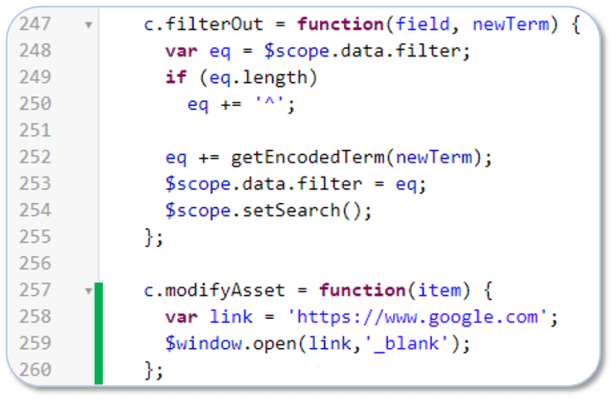
Finally you’ll need to add $window to the end of line 1 in the Client Script.

Let’s see it work
Throw it on a new page or use the test page if created with the widget clone. Lots of possibilities here!
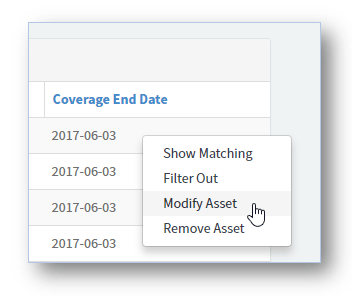
Next step in our following post by making it pop up with desired catalog item and hopefully pre-populating some of the variables up front.
 Service Starts Now